Hello World of SENSAI Apps
SENSAI Apps brings AI assistance directly into AIMMS Developer, built on top of AIMMS’s established Operations Research platform. This article walks through a first hands-on session: connecting AIMMS Developer to SENSAI, opening the SENSAI chat in a new project, asking SENSAI to create and apply a small skill, and reviewing exactly what it changed, including the skill definition it saved for reuse.
This article covers:
Preparing for SENSAI Apps
Opening SENSAI Apps in a new project
Specifying a small skill
Observing the results
The skill definition
Prerequisites
A license for AIMMS Developer version 26.4 or later.
Access to an AIMMS Cloud with SENSAI activated.
Preparing for SENSAI Apps
Step 1:
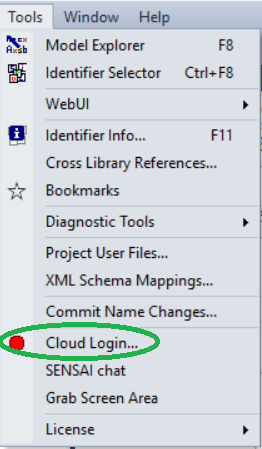
Open AIMMS Developer and choose .
Step 2:
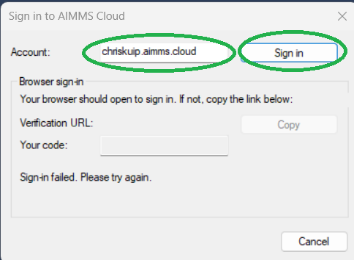
In the dialog, enter the cloud account you’re allowed to use, and press . This opens a browser window to complete the sign-in; if the dialog briefly shows as in the screenshot below, just retry. It typically succeeds on the next attempt.
Step 3:
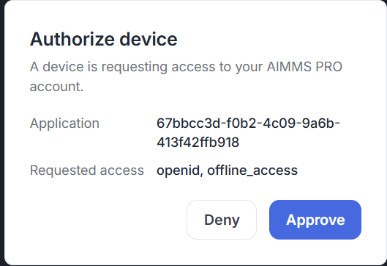
Connect the device. In the browser, approve the request:
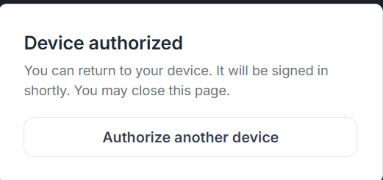
Pressing Approve gives AIMMS Developer access:
Step 4:
Back in AIMMS Developer, the menu now should show instead of .
Opening SENSAI Apps in a New Project
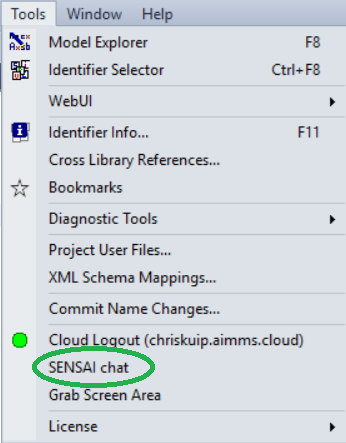
With access to SENSAI, you can open the SENSAI chat via the menu:
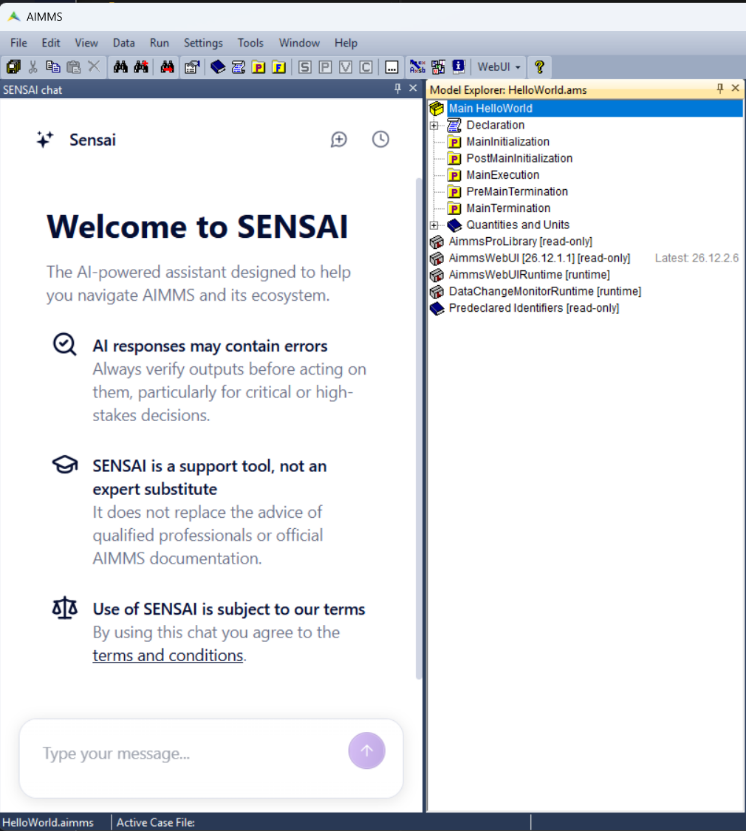
In a new project, the opening window looks like this:
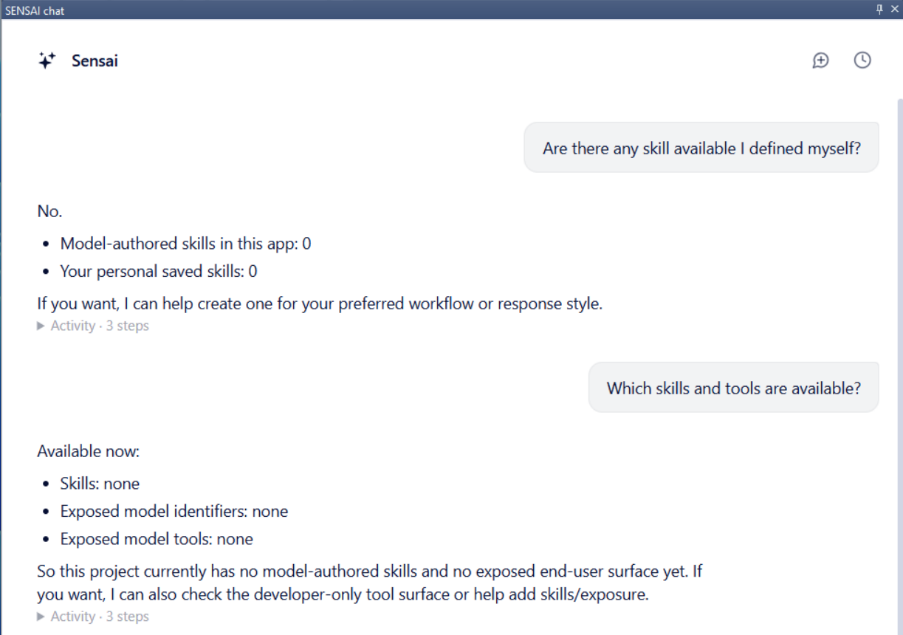
To get acquainted, you can ask SENSAI a few questions, for example:
Specifying a Small Skill
In my User Support role, I often create a small AIMMS example to illustrate or test a particular feature. I like that example to be structured consistently from the start.
That’s why I group the initialization and termination procedures together, and extend the time-duration quantity with some commonly used time units, every time I start a new project. Instead of doing this by hand each time, I asked SENSAI to turn it into a reusable skill:
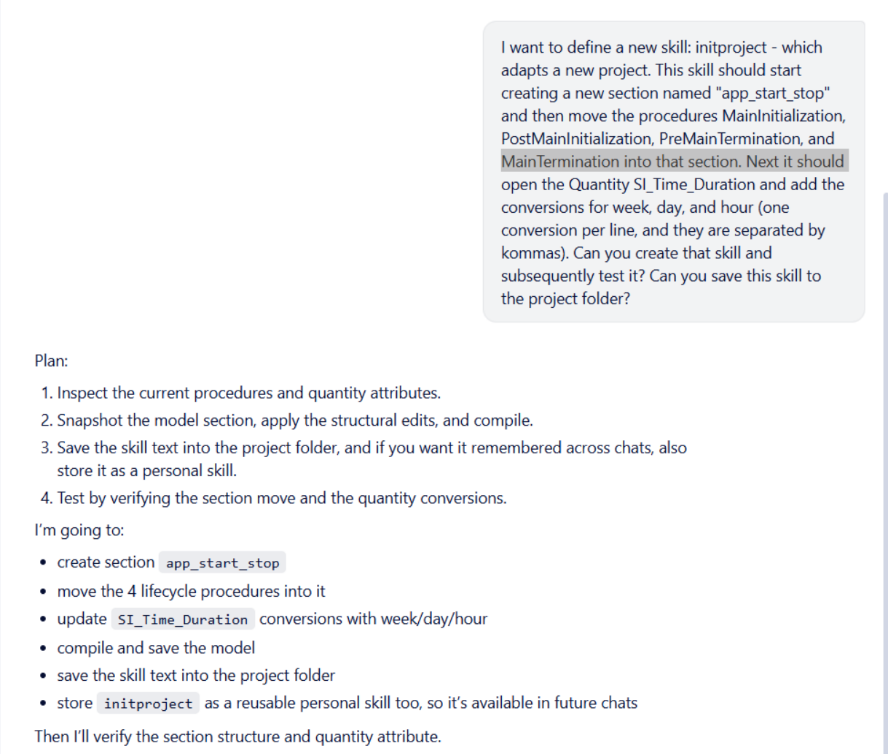
I want to define a new skill: initproject - which adapts a new project.

This skill should start creating a new section named "app_start_stop" and then
move the procedures MainInitialization, PostMainInitialization,
PreMainTermination, and MainTermination into that section.

Next it should open the Quantity SI_Time_Duration and add the conversions for
week, day, and hour (one conversion per line, and they are separated by
commas).

Can you create that skill and subsequently test it?

Can you save this skill to the project folder?
SENSAI immediately got to work:
Observing the Results
SENSAI quickly created the skill and applied it to the project, and quickly came back with results:
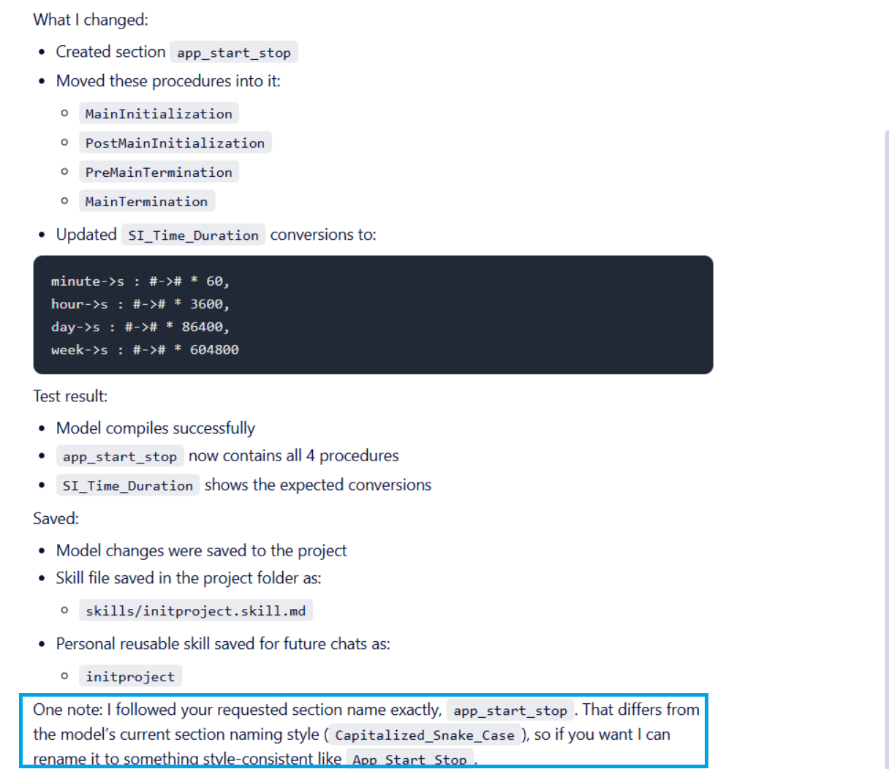
SENSAI’s response includes a proactive style note, boxed in blue above.
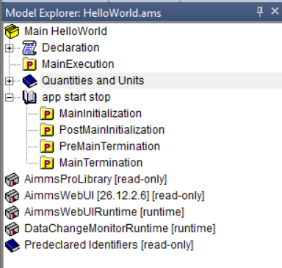
The Model Explorer confirmed the new section and its procedures:
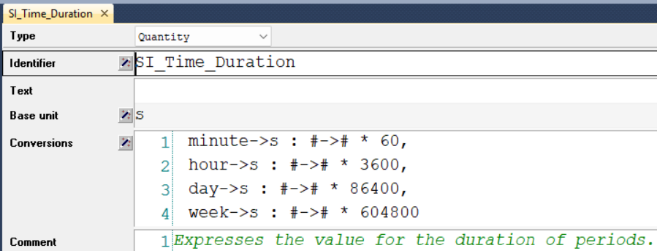
And the SI_Time_Duration quantity showed the updated conversions:
Note
The minute conversion wasn’t part of the request. It was already present
in SI_Time_Duration when the project was created (AIMMS PRO and AIMMS
WebUI add it by default). SENSAI only added the week, day, and hour
conversions that were actually asked for.
The Skill Definition
SENSAI saved the skill for reuse in two places: as
skills/initproject.skill.md in the project, and as a personal skill
named initproject available in future chats. Here is what it saved:
# Skill: initproject

When asked to adapt a new project:

1. Create a new section named `app_start_stop`.
2. Move the procedures `MainInitialization`, `PostMainInitialization`,
   `PreMainTermination`, and `MainTermination` into that section.
3. Open the quantity `SI_Time_Duration` and update its `conversions`
   attribute so it contains one conversion per line, separated by
   commas, adding conversions for hour, day, and week.
4. Compile the model.
5. Verify that section `app_start_stop` contains the four procedures
   and that `SI_Time_Duration` contains the expected conversions.
6. Save the model if the user asks to persist the structural changes.
In this Hello World walkthrough, we connected AIMMS Developer to SENSAI, opened the SENSAI chat in a new project, asked SENSAI to create and apply a small skill, and reviewed both the model changes and the skill definition it produced and saved for reuse. From here, try asking SENSAI to turn one of your own recurring modeling steps into a skill.